
How to Send Shopify Flow Emails from Your Own Domain with Gmail
A free Gmail account can send as an address on your own domain, so customers see [email protected] instead of [email protected]. You add the address in Gmail and confirm it, then enter it as the From address in MailAction.
Gmail sends a confirmation code to the new address, so you need access to its inbox.
The Short Version
- On Google Workspace with your own domain, connect that mailbox instead. You don’t need this guide.
- Create a Google app password.
- In Gmail, add your address under Send mail as, using
smtp.gmail.comand the app password. - Confirm the code Gmail sends to that address.
- In MailAction, enter the address as the From email address and send a test email.
What You'll Need
- MailAction installed and connected to Gmail (see the Gmail setup guide)
- A free Gmail account (
@gmail.com) with 2-Step Verification turned on - Access to the inbox of the address you want to send from
Step 1Check Whether You Need This
If your email is on Google Workspace (a paid Google account on your own domain), sign in to MailAction with that mailbox and you’re done. Emails go out from that address. Follow option 1 in the Gmail setup guide.
The steps below are for a free @gmail.com account sending as an address on your own domain.
Step 2Create an App Password
Go to myaccount.google.com/apppasswords. If the page says app passwords aren’t available, turn on 2-Step Verification at myaccount.google.com/security first.
Enter a name like “Send mail as” and click Create. Copy the 16-character password. Google only shows it once.
Step 3Add the Address in Gmail
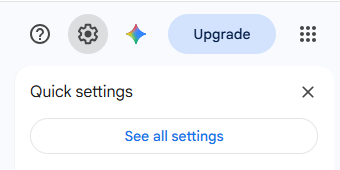
In Gmail, click the gear icon, then See all settings.
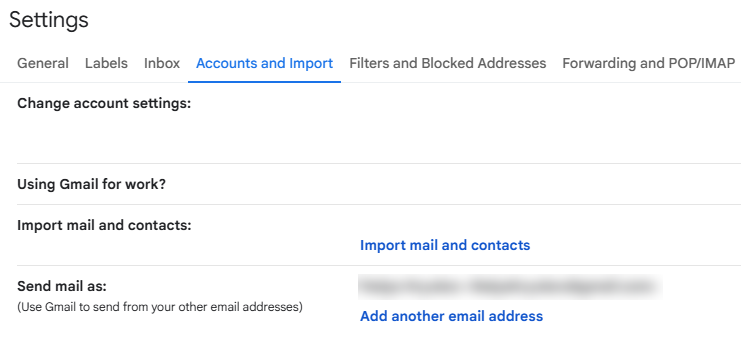
Open Accounts and Import and, next to Send mail as, click Add another email address.
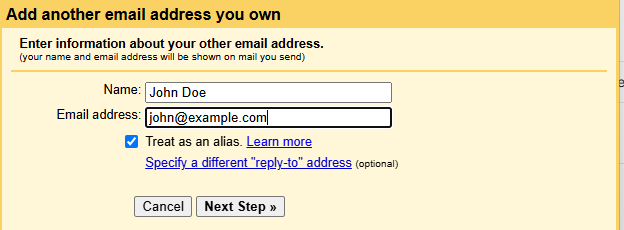
Enter your name and the address, for example [email protected]. Leave Treat as an alias ticked and click Next Step.
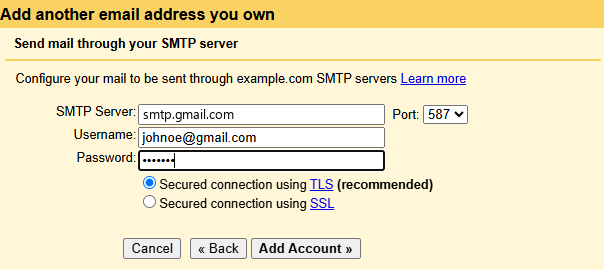
Gmail asks for an SMTP server. Fill in:
- SMTP Server:
smtp.gmail.com - Port:
587 - Username: your full Gmail address
- Password: the app password from the previous step
Keep Secured connection using TLS selected and click Add Account.
Step 4Confirm the Address
Gmail sends a confirmation email to [email protected]. Open it and click the link, or paste the code into the Gmail window.
The address now shows under Send mail as. To check it, write a new email in Gmail and pick it in the From field.
Step 5Set It as Your From Address in MailAction
In MailAction, open Settings. Under Email sender details, enter the address as the From email address and click Save.
Click Send test email. The email should arrive from your own address.
Common Issues
Emails still arrive from the @gmail.com address
- Gmail replaces any address it hasn’t confirmed with your Gmail address. Check that the address is listed under Send mail as and isn’t marked unverified
- Check that the From email address in MailAction matches the confirmed address exactly
- Check that the Gmail account connected in MailAction is the one where you added the address
Gmail says it can’t sign in to smtp.gmail.com when you add the address
- Use the app password, not your normal Google password
- Enter your full Gmail address as the username, not the new address
The confirmation email never arrives
- Check the spam folder of that inbox. If the address forwards somewhere, check there too
- If the address has no inbox yet, create one or set up forwarding with your domain or email host first
Emails bounce or land in spam
- Your domain’s DMARC policy may be strict. If it’s set to
quarantineorreject, mail sent through Gmail for your domain can get blocked. Ask whoever manages your domain, or connect a provider that verifies your domain, like Resend
Where to Go Next
Send Flow emails from your own address
MailAction adds a Send transactional email action to Shopify Flow.
Install MailAction