
How to Email Bank Transfer Details and a Payment Reminder from Shopify Flow
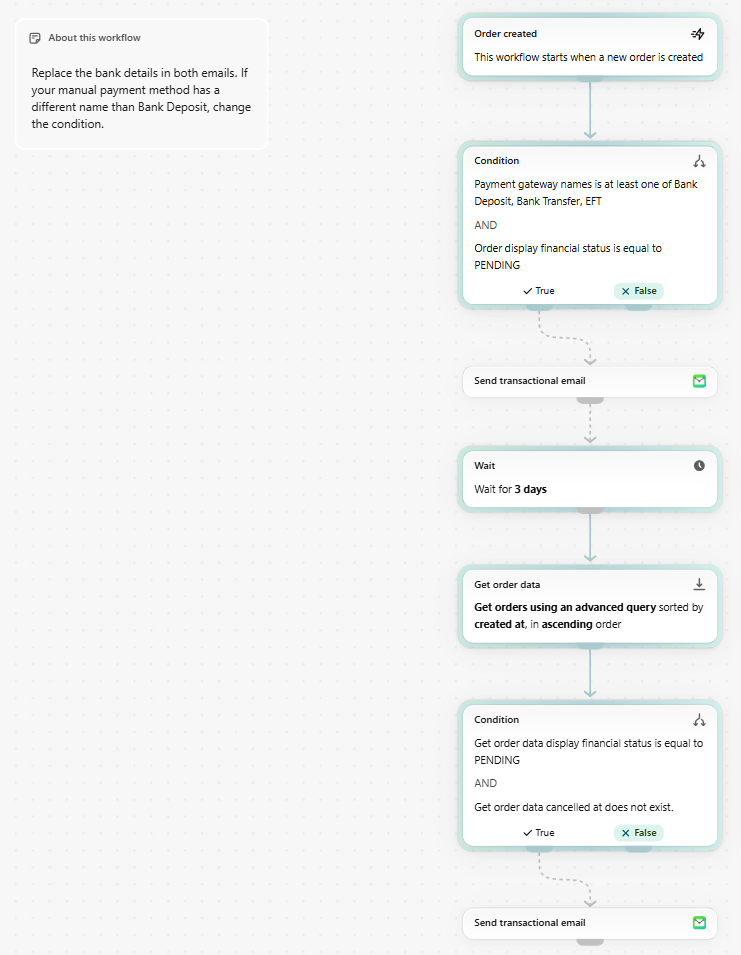
When a customer pays by bank transfer, Shopify’s order confirmation doesn’t tell them where to send the money. You end up emailing bank details by hand, then chasing the orders that never get paid. This guide automates both. MailAction emails the bank details and the exact amount as soon as the order comes in. Three days later, Shopify Flow checks the order again, and if it’s still unpaid and not cancelled, the customer gets a reminder.
In a hurry? We’ve published a ready-made version in Shopify Flow: install the template and jump straight to customizing the two emails, or build it yourself with the steps below.
The Short Version
- Start with the Order created trigger and a condition that matches your manual payment method and a pending payment.
- Send the bank details with MailAction’s Send transactional email action.
- Wait 3 days, then use Get order data to load the order’s current status.
- If it’s still pending and not cancelled, send a payment reminder.
What You'll Need
- A Shopify store on a plan that includes Shopify Flow
- A manual payment method turned on under Settings → Payments, like Bank Deposit
- MailAction installed and connected to an email provider (see the setup guides)
Step 1Set Up the Trigger and Condition
In Shopify Flow, create a new workflow and choose the Order created trigger. Add a Condition with two checks joined by AND:
- Payment gateway names is at least one of
Bank Deposit,Bank Transfer,EFT - Order display financial status is equal to
PENDING
Bank Deposit is Shopify’s default name for a manual bank payment. If you created your own manual method, add its name exactly as it appears in your payment settings. Card orders and anything already paid fail the condition, so they never get the email.
Step 2Email the Bank Details
On the True branch, add MailAction’s Send transactional email action. Set the recipient to {{order.email}} and a subject like Payment details for order {{order.name}}.
In the body, list your bank name, account name, IBAN or account number, and SWIFT/BIC. Use the order number as the payment reference so you can match incoming transfers to orders. Pull the amount from the order so the customer sends the right total:
Amount to transfer: {{ order.totalOutstandingSet.presentmentMoney.amount }} {{ order.presentmentCurrencyCode }}
Payment reference: {{ order.name }}
A link to {{ order.statusPageUrl }} lets the customer check their order at any time.
Step 3Wait, Then Check the Order Again
Add a Wait step set to 3 days. After that, add Get order data with an advanced query that loads this one order:
id:{{order.legacyResourceId}} AND financial_status:pending AND NOT status:cancelled
You need this step because the trigger’s order data is a snapshot from the moment the order was created. Without it, the workflow would still see the order as unpaid even after you marked it paid.
Step 4Send the Payment Reminder
Add a second Condition:
- Get order data display financial status is equal to
PENDING - AND Get order data cancelled at does not exist
On the True branch, add another Send transactional email with a subject like Reminder: payment for order {{order.name}}. Repeat the same bank details and amount, and add a line telling the customer to ignore the email if they’ve already paid, since transfers can take a few days to arrive.
Step 5Test and Turn It On
Place a test order with your manual payment method, using your own email address. The bank details email should arrive right away. Check that the amount and order number are right and that you replaced every placeholder bank detail. Open MailAction’s sent emails log to confirm it went out, then turn the workflow on.
When a transfer arrives, mark the order as paid in Shopify admin. The reminder only goes to orders that are still pending after 3 days.
Common Issues
Customers who paid by bank transfer didn’t get the email.
- Check the payment gateway name in the condition. It has to match your manual payment method’s name exactly, including capitalization.
- Look at the workflow’s run history in Flow to see whether the condition returned False.
A customer got the reminder after they already paid.
- Mark the order as paid in Shopify admin as soon as the transfer arrives. Flow only knows about payments recorded on the order.
- Make sure the reminder condition uses the Get order data fields, not the fields from the Order created trigger.
The amount shows as blank or wrong.
- Insert the amount with Flow’s variable picker so it links to the order. If it renders as literal Liquid text, the variable wasn’t linked.
Where to Go Next
- Connect your email provider
- Email a pickup reminder
- Email a confirmation for custom orders
- Send a welcome discount email
Stop chasing bank transfers by hand
Install MailAction, connect your provider, and let Flow send payment details and reminders for you.
Install MailAction