How to Send a Welcome Discount Email from Shopify Flow
Shopify Flow knows the moment a customer subscribes, but on its own it can’t create a discount code or send a custom email. This guide connects both: Bulk Discount Code generates a code the instant someone subscribes, and MailAction emails it through your own provider. By the end you’ll have a hands-off welcome flow: every new subscriber gets a working discount code without you lifting a finger, in an email that looks like yours instead of a generic Shopify notification.
In a hurry? We’ve published a ready-made version in Shopify Flow: install the template and jump straight to customizing the email, or build it yourself with the steps below.
The Short Version
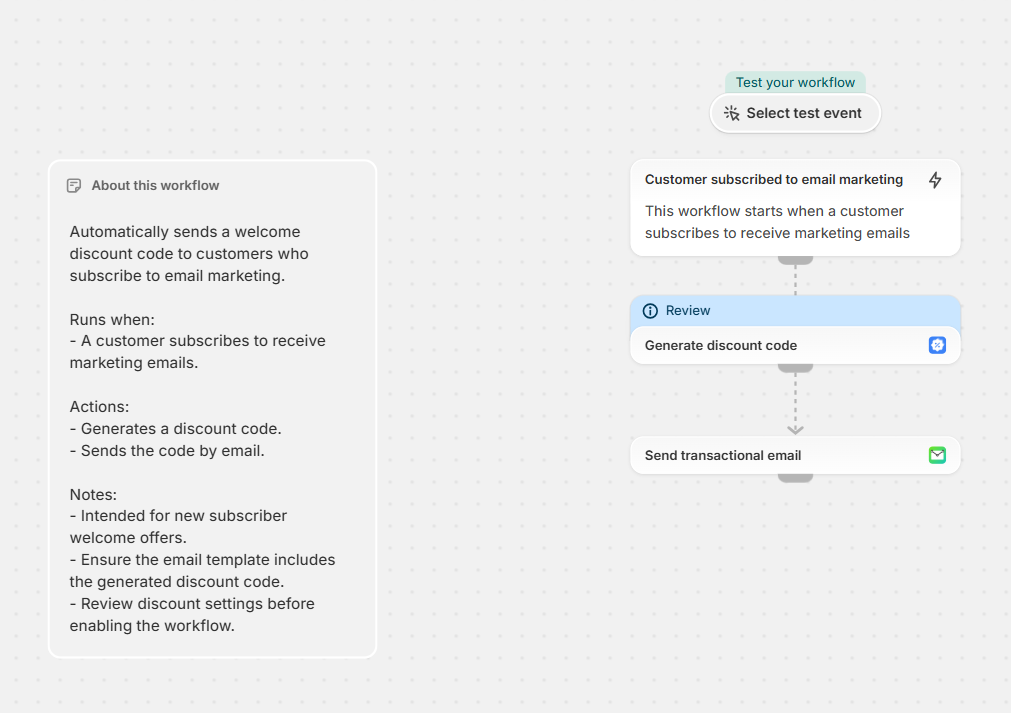
- Set the trigger to Customer subscribed to email marketing.
- Add the Generate discount code action to create the code.
- Add MailAction’s Send transactional email action and insert the code in the body.
- Run a test event, then turn the workflow on.
What You'll Need
- A Shopify store on a plan that includes Shopify Flow
- MailAction installed and connected to an email provider (see the setup guides)
- Bulk Discount Code installed, for unique per-subscriber codes
Step 1Set Up the Trigger
Step 2Generate the Discount Code
Option A: Unique code per subscriber (recommended)
Option B: One shared code
WELCOME10 in Shopify Admin under Discounts, then reference it as plain text in the email. Simpler, but everyone gets the same reusable code.Step 3Send the Email with MailAction
Add the Send transactional email action after the code step. Set the recipient to the customer’s email pulled from the trigger, write your subject line, and compose the body. Use Flow’s variable picker to insert the code from the Generate discount code step. It drops into the body as a Liquid tag:
Use code {{ generateDiscountCode.discount_code }} to save on your first order. Limited-time welcome offer inside.
For Option B, replace {{ generateDiscountCode.discount_code }} with your static code, e.g. WELCOME10.
Step 4Test and Turn It On
Common Issues
The email arrives but the discount code is missing or blank.
- Make sure the Generate discount code step runs before the email step. Flow executes actions top to bottom.
- Confirm you inserted the code variable from the picker, not typed it as plain text. A literal {{ generateDiscountCode.discount_code }} that renders verbatim means the variable wasn’t linked.
People who didn’t subscribe are getting the email, or it sends twice.
- Check you’re using the Customer subscribed to email marketing trigger, not Customer created.
- Look for a second workflow targeting the same audience and disable the duplicate.
The code never generates.
- Open Bulk Discount Code and confirm the action’s discount value and usage limit are set.
- Check the Generate discount code step’s run output in Flow for an error from the app.
Where to Go Next
Start your welcome flow
Install MailAction, connect your provider, and greet every new subscriber automatically.
Install MailAction