
How to Email a Confirmation for Custom and Personalized Orders
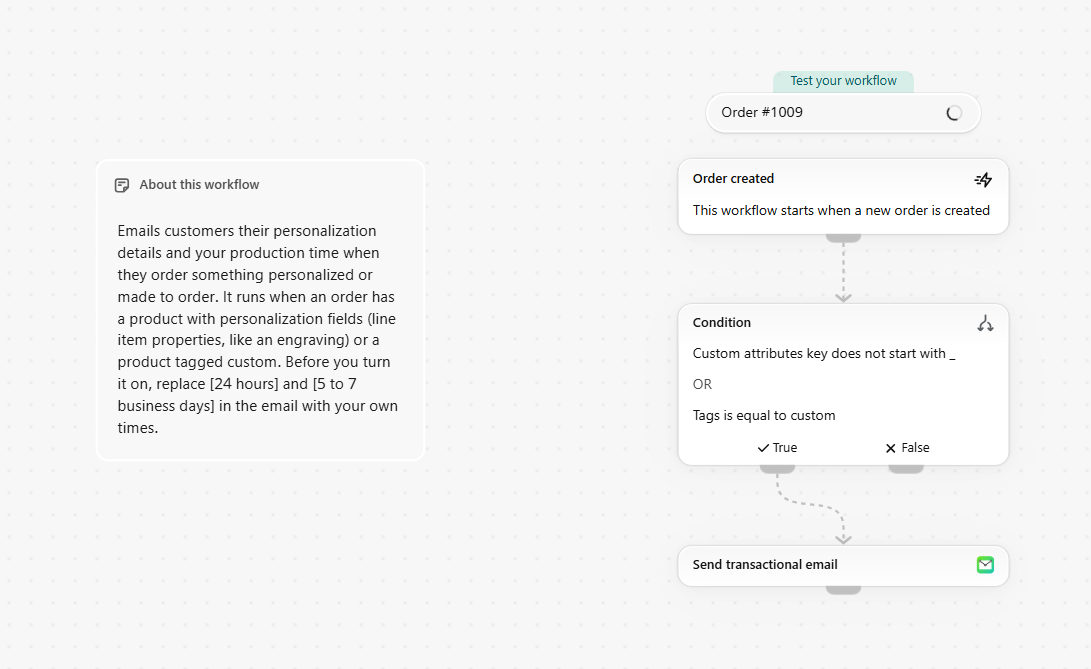
A typo in an engraving costs you a remake, and customers who wait two weeks without hearing from you start emailing to ask where their order is. This guide sets up an email that goes out as soon as the order comes in. It lists what the customer ordered with every personalization detail they entered, asks them to reply if something’s wrong, and tells them how long making and shipping take.
In a hurry? We’ve published a ready-made version in Shopify Flow: install the template and jump straight to customizing the confirmation email, or build it yourself with the steps below.
The Short Version
- Start with the Order created trigger.
- Add a condition that matches line items with personalization fields or a product tagged custom.
- Send the confirmation with MailAction’s Send transactional email action, listing each item’s personalization details.
- Fill in your correction window and production time, test, and turn it on.
What You'll Need
- A Shopify store on a plan that includes Shopify Flow
- Products with personalization fields (line item properties from your theme or a product options app), or made-to-order products you can tag
custom - MailAction installed and connected to an email provider (see the setup guides)
Step 1Set Up the Trigger and Condition
In Shopify Flow, create a new workflow and choose the Order created trigger. Add a Condition on At least one of order / line items, then add two checks for the same line item, joined with OR:
- At least one of custom attributes: Key does not start with
_ - At least one of product / tags: Tags is equal to
custom
Personalization fields like “Engraving” or “Name on cup” are stored on the order as line item properties, which Flow calls custom attributes. Bundle and subscription apps add hidden properties whose names start with _, so the first check skips those. The tag check covers made-to-order products that have no personalization fields. Orders that match neither check don’t get the email.
Step 2Send the Confirmation
On the True branch, add MailAction’s Send transactional email action. Set the recipient to {{order.email}} and a subject like What happens next with order {{order.name}}.
In the body, list each item with the personalization the customer entered. A loop inside the line item loop prints the properties and skips the hidden ones:
{% for line in order.lineItems %}
  {{ line.quantity }} × {{ line.title }}
  {% for attr in line.customAttributes %}
    {% assign first_char = attr.key | slice: 0 %}
    {% if first_char != "_" and attr.value != blank %}
      {{ attr.key }}: {{ attr.value }}
    {% endif %}
  {% endfor %}
{% endfor %}
Below the list, ask the customer to check their details and reply within [24 hours] if something’s wrong. Then say what happens next: you check the details, you make the order in [5 to 7 business days], and you ship it with tracking. A link to {{ order.statusPageUrl }} lets them check their order.
Step 3Test and Turn It On
custom, or pick one with a personalization field, and place an order with your own email address. When the email arrives, check the items and personalization details, and confirm it in MailAction’s sent emails log. Then turn the workflow on.Common Issues
A customer ordered a personalized product but didn’t get the email.
- Check the workflow’s run history in Flow. If the condition returned False, the order had no personalization fields and no product tagged
custom. - Some personalization apps save their fields with names that start with
_. Tag those productscustomso the condition still matches.
The email lists the items but no personalization details.
- The order matched on the
customtag and has no personalization fields. That’s expected. - If the customer did enter details, open the order in Shopify admin. If they don’t appear under the line item there, the app or theme didn’t save them to the order.
The email still shows [24 hours] or [5 to 7 business days].
- Replace the placeholders in the email body with your own times, then save the workflow.
Where to Go Next
- Connect your email provider
- Email a pickup reminder
- Email bank transfer details and a payment reminder
Catch personalization mistakes early
Install MailAction, connect your provider, and let Flow confirm every custom order.
Install MailAction